


Most Conditional Access gaps aren’t exotic. They come from reading policies the wrong way: as firewall rules with an “allow”, as a list of platforms that seems complete, as an MFA exception for the office that made sense years ago. Brandon Colley has reviewed well over a thousand Conditional Access policies in customer assessments, and the same handful of mistakes come up in tenant after tenant.
Once those are fixed, the risk moves. Passkeys, privileged access and Conditional Access put more locks on the front door, the user sign-in. An app that was consented to years ago, holds a client secret and still has a stale redirect URI is a back door that none of those locks cover.
Brandon is a Senior Security Consultant at TrustedSec and a Microsoft Security MVP. He came from systems administration, learned Active Directory security at Trimarc, and now spends his days on cloud and on-premises assessments and the remediation that follows. These are the gaps he checks first, and the app and consent settings he has moved on to.
Security defaults can cover more admins than your policies
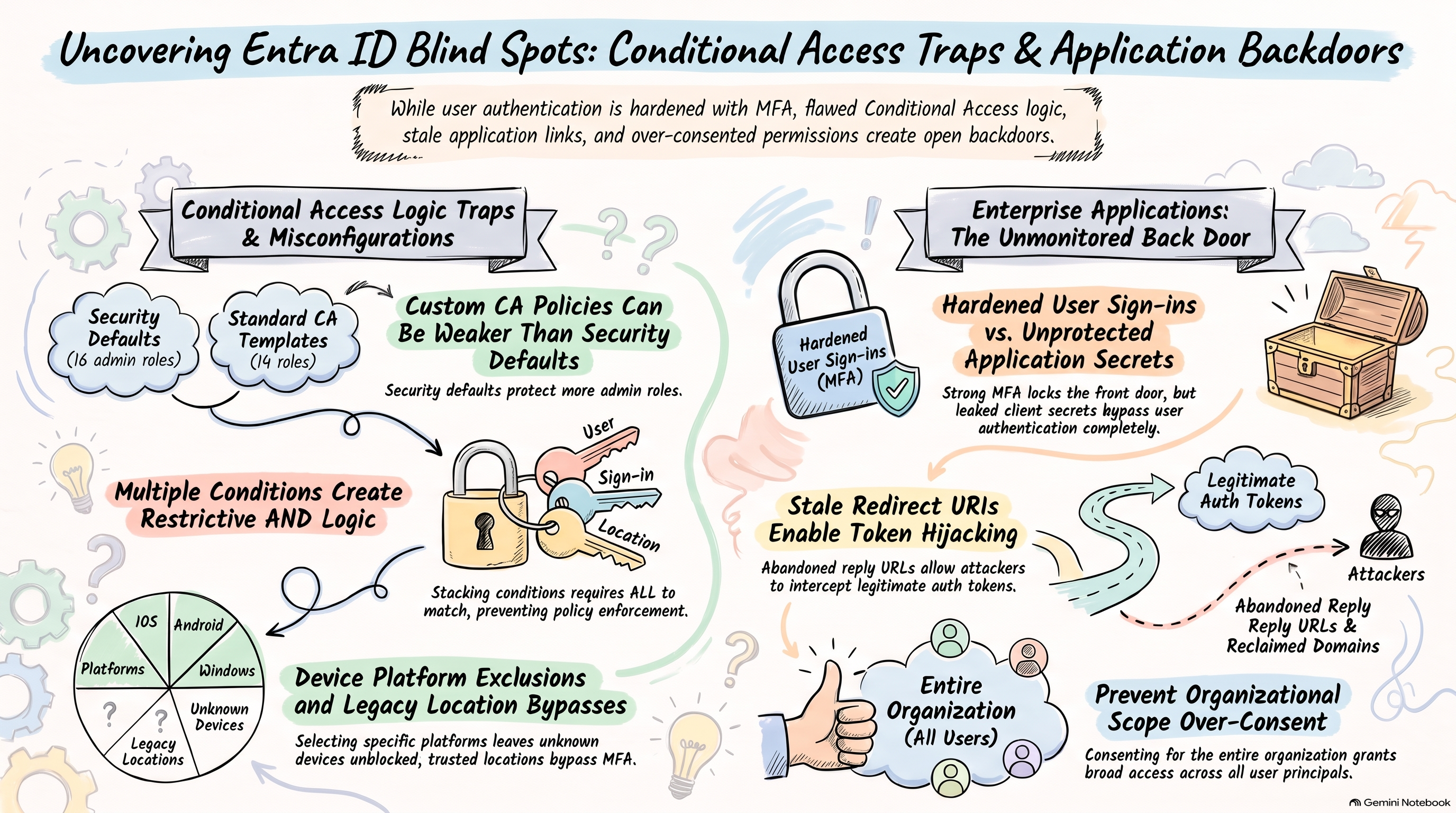
The free tier can be stricter than the paid one. Security defaults require MFA for 16 administrator roles. The Microsoft-managed policy “Multifactor authentication for admins accessing Microsoft Admin Portals”, and the “Require MFA for admins” template it mirrors, cover 14. The two extra roles in security defaults are Authentication Policy Administrator and Identity Governance Administrator.
If a small tenant is on security defaults, think hard before switching it off: the moment you do, you lose protections that you then have to rebuild in Conditional Access yourself.
Sponsored by:

ENow Software Introduces New Entra ID App Onboarding Experience
As user requests for SaaS and AI applications increase, Entra ID and M365 teams face a growing volume of security reviews, added hours of manual research, and bottlenecks.
New! ENow App Governance Accelerator 4.0 introduces App Onboarding, helping teams:
Accelerate app approvals with configurable, multistage workflows.
Evaluate security risks more efficiently with integrated Microsoft Defender for Cloud Apps risk scores.
Reduce manual work with centralized requests, reviews, and approvals.
Improve transparency with a self-service portal for requesters to track status and decisions.
Control app sprawl with an Internal App Catalog of approved applications.
Go beyond Microsoft’s consent and approval capabilities with customizable, structured application governance, from the initial request through ongoing oversight.
Faster Approvals. Less Admin Work. Better Security Posture.
Decide which roles are privileged yourself
“We require MFA on privileged roles” is easy to say in an audit. An assessment asks a harder question: privileged by whose definition? Brandon’s own list is about 36 roles, grouped into tier 0 and tier 1, the same tiering model Active Directory admins used 20 years ago.
Don’t lean on Microsoft’s mandatory MFA either. It covers the Azure portal, the Microsoft Entra admin center, the Intune admin center and the Microsoft 365 admin center, plus create, update and delete operations from Azure CLI, Azure PowerShell, the Azure mobile app and IaC tools. Microsoft Graph APIs are generally not in scope, so in some cases a single-factor sign-in can still reach Graph. Your Conditional Access still has to cover every app and every role you consider privileged.
Every platform is not all platforms
Conditions inside one policy combine with AND. A policy that requires MFA when the user is risky, the sign-in is risky and the location is outside the United States only fires when all three are true at once, so it almost never fires. Put conditions that should act on their own into separate policies.
The device platforms condition has the same trap. Ticking Android, iOS, Windows, macOS and Linux is not the same as “any device”. The platform comes from the user agent string, which isn’t verified and is easy to change, so a sign-in that claims an unknown platform matches none of your platform policies and walks past all of them. Microsoft’s recommended fix is a separate block policy: include Any device, exclude the platforms you support, and set the grant to Block access. Brandon covers how the spoofing works in his Petri article (linked below).
Watch this episode…
Conditional Access has no allow rule
Customers often ask for a policy that will “allow finance access to the finance app”. Conditional Access has no allow rule. A policy is an if-then statement: if the users, target resources and conditions match, then require MFA, a compliant device or another control, or block. Anything the policy doesn’t match passes through untouched.
So every time you narrow the users, the apps or the conditions to describe who should get in, you also shrink what the policy protects. Scope policies broadly and carve out exclusions on purpose.
Testing: ask what a policy doesn’t do
Testing usually covers the happy path: the right user opens the right app and gets an MFA prompt. The gaps are in the paths nobody tried: the user who isn’t in the group, the unmanaged device, the other network. Two locations, managed and unmanaged devices, a few apps and a few user types already make dozens of test cases, and every new condition (insider risk from Microsoft Purview, for example) multiplies them again.
The useful question isn’t “what does this policy do?” but “what doesn’t it do, and does something else cover that?” When you add a role or group to one policy, check whether it should come out of another.
Tools help:
What If tool: simulate a sign-in for a user, app, device platform and location, and see which policies apply.
Conditional Access Optimization Agent: Microsoft Security Copilot reviews your policies and suggests new policies (created in report-only mode) and changes for you to approve. It needs Microsoft Entra ID P1 and security compute units.
AI with sanitized data: as a consultant, Brandon often can’t run tools inside a customer’s tenant. He exports the policies as JSON, removes tenant names, group names and IDs, and asks an AI model to explain a specific coverage question. Challenge the answers and verify them; don’t take them on trust.
User actions and device code flow
Two gaps Brandon still finds often:
User actions. Conditional Access can target Register security information and Register or join devices. Without a policy on these, registering an MFA method or a device is protected only by whatever the sign-in itself required.
Device code flow. Microsoft deploys a managed policy that blocks it in some tenants, but Brandon has seen it deployed only about three times. Check whether you need it: filter the sign-in logs by authentication protocol for device code and see who uses it. Legitimate users are usually input-constrained devices such as Teams phones and Teams Rooms. At one customer, the single device code sign-in turned out to be their own penetration test. Then block it with an authentication flows policy and exclude only what genuinely needs it.
Trusted locations: the exception that switches MFA off
A common policy reads: require strong authentication for all users, all apps, everywhere, except trusted locations. It was best practice once. In effect it means single-factor sign-in at the office, and it often survives after the rest of the policy has been modernized.
On Microsoft Entra joined and hybrid joined Windows devices you don’t need the exception for single sign-on. The primary refresh token (PRT) provides SSO to apps and carries the MFA claim. The exception only lets users skip strong authentication.
Flip how you use locations. Instead of using them to relax MFA, use them to lock down the accounts that can’t do MFA, such as service accounts, shared accounts and kiosk accounts, so they only work from specific IP ranges and devices.
While you’re there:
MFA trusted IPs in the legacy MFA service settings are IPv4-only and not recommended. The “All trusted networks and locations” option in Conditional Access includes them. The checkbox to skip MFA for federated users on your intranet belongs to the same legacy settings.
Continuous access evaluation checks IP-based named locations at the resource. Include both IPv4 and IPv6 ranges, or IP mismatches will cause unexpected behaviour.
Check your ranges. Few admins still calculate subnets by hand. AI can help, as long as you check the answer: ask whether a specific IP is inside a specific range rather than accepting “it’s a /8”.
Compliant network. With Global Secure Access and the Microsoft traffic profile, the compliant network check in Conditional Access is included with Microsoft Entra ID P1. It follows the device rather than the building, which suits people who move around with their laptops.
Apps: the back door
There are no unpatched Entra servers for an attacker to exploit, so the ways in are user sign-in and apps. Once an app is in the tenant, consented, holding permissions and a client secret, it lives there until someone actively looks at it. A single leaked client secret can be all an attacker needs, and none of the controls on user sign-in apply to it. Prefer certificates, and better still managed identities or workload identity federation, over client secrets.
Redirect URIs and dangling domains
A redirect URI (reply URL) is where Microsoft Entra sends the token after a user signs in. If an attacker controls that URL, they get the token from a completely legitimate Microsoft sign-in, usually started by a phishing link. Watch for three kinds:
Old redirect URIs left behind after an app moved.
Wildcards, which Microsoft’s guidance says not to use.
Reclaimed domains: names you let go that someone else can register.
The classic case is azurewebsites.net. Developers used App Service default hostnames because they came with TLS and needed no DNS or PKI tickets. When a web app was deleted, anyone could create a new app with the same name and receive the tokens for any redirect URI still pointing at it. The redirect URIs of a multitenant app are visible to every tenant that uses it, so attackers can build lists and look for dangling names. Azure App Service now creates new apps with secure unique default hostnames (<app>-<random hash>.<region>.azurewebsites.net) by default in the Azure portal, so a deleted name can’t simply be re-registered by someone else.
A stale domain doesn’t mean a dead app: an app with several redirect URIs can still be in daily use while one of them points at a name nobody owns. It happens to everyone. A Zero Trust Assessment check once flagged a reply URL on Microsoft’s own Microsoft Graph PowerShell app that pointed to an invalid domain, and Microsoft removed it. The odds of any one tenant being hit are small, but it’s a cheap thing to check: own the domain behind every redirect URI, remove the ones you don’t use, and don’t use wildcards.
Homegrown apps can leak tokens too. If an app stores tokens in browser local storage and has a cross-site scripting bug, an attacker can read the token and send it to their own server. Anyone who uses that app with consented permissions can then be impersonated.
The checkbox: consent on behalf of your organization
Application permissions look dangerous at a glance, because the app acts as itself. Delegated permissions are quieter: the app acts as the signed-in user, with whatever that user can do.
When an admin is asked to consent, the prompt has a Consent on behalf of your organization checkbox, unticked by default. It looks like the helpful thing to tick. Ticked, it creates a tenant-wide grant (consentType: AllPrincipals) for every user. If the app has an elevated delegated permission such as Directory.ReadWrite.All and a Global Administrator later signs in to it, the app can act with that admin’s rights across the directory.
Two habits close most of the gap:
Leave the checkbox unticked. Consent for yourself unless the whole organization really needs the app.
If you do consent for everyone, set Assignment required? to Yes on the enterprise app and assign only the users and groups who should use it. Note that Global Administrators aren’t blocked by the assignment requirement.
Where are my privileged apps?
There’s no single page in the portal that answers “where are my privileged applications?” In the GUI you click into each app, open API permissions and review it, one app at a time. The answers you need are spread out:
Microsoft Entra admin center: the Conditional Access Coverage tab (apps with and without Conditional Access coverage), the Conditional Access gap analyzer workbook, and Microsoft Entra recommendations such as “Remove unused applications” and “Remove unused credentials from applications”.
Microsoft Defender for Cloud Apps: app governance lists highly privileged, overprivileged and unused apps, if you’re licensed for it. Many organizations are licensed and don’t know.
Maester: pulls these checks into one report you can run on a schedule.
Microsoft Secure Score: a good place to start, not a place to stop.
Write it up
If you’ve hit a problem in your tenant, someone else has hit it too. Write it up, blog it or submit a talk about it. Even if the topic has been covered a hundred times, your angle may be the one that makes it click for somebody.
About Brandon Colley
Brandon Colley is a Senior Security Consultant at TrustedSec and a Microsoft Security MVP, with about 20 years of experience administering and securing Active Directory and Microsoft cloud environments. He started on the help desk and in systems administration in higher education, then moved into security at Trimarc, where he learned Active Directory security from Sean Metcalf and ran Trimarc’s Microsoft cloud security assessment. At TrustedSec he runs cloud and on-premises assessments and remediation, researches and writes about Conditional Access and Entra application security, and speaks at conferences across the US.
LinkedIn - https://www.linkedin.com/in/techbrandon/
Related Links
From the conversation:
How Unsupported Devices Can Bypass Microsoft Entra Conditional Access Policies, by Brandon Colley on Petri (mentioned at 12:57) - https://petri.com/bypass-entra-conditional-access-policies/
Sean Metcalf on Entra.Chat: Stop Leaving the Door Open, the Entra ID hardening checklist (mentioned at 04:14) - https://entra.news/p/stop-leaving-the-door-open-the-entra
Maester (mentioned at 09:53) - https://maester.dev
Zero Trust Assessment (mentioned at 31:35) - https://learn.microsoft.com/en-us/security/zero-trust/assessment/overview
Conditional Access:
Security defaults in Microsoft Entra ID (mentioned at 08:24) - https://learn.microsoft.com/en-us/entra/fundamentals/security-defaults
Microsoft-managed Conditional Access policies (mentioned at 08:35) - https://learn.microsoft.com/en-us/entra/identity/conditional-access/managed-policies
Require MFA for administrators (Conditional Access template) (mentioned at 08:35) - https://learn.microsoft.com/en-us/entra/identity/conditional-access/policy-old-require-mfa-admin
Mandatory multifactor authentication for Azure and admin portals (mentioned at 10:05) - https://learn.microsoft.com/en-us/entra/identity/authentication/concept-mandatory-multifactor-authentication
Build a Conditional Access policy (mentioned at 11:32) - https://learn.microsoft.com/en-us/entra/identity/conditional-access/concept-conditional-access-policies
Conditional Access conditions: device platforms and insider risk (mentioned at 11:57) - https://learn.microsoft.com/en-us/entra/identity/conditional-access/concept-conditional-access-conditions
Block access for unknown or unsupported device platform (mentioned at 11:57) - https://learn.microsoft.com/en-us/entra/identity/conditional-access/policy-all-users-device-unknown-unsupported
What If tool (mentioned at 17:01) - https://learn.microsoft.com/en-us/entra/identity/conditional-access/what-if-tool
Conditional Access Optimization Agent (mentioned at 17:32) - https://learn.microsoft.com/en-us/entra/security-copilot/conditional-access-agent-optimization
Target resources, including user actions (mentioned at 17:54) - https://learn.microsoft.com/en-us/entra/identity/conditional-access/concept-conditional-access-cloud-apps
Authentication flows and device code flow (mentioned at 18:06) - https://learn.microsoft.com/en-us/entra/identity/conditional-access/concept-authentication-flows
Block authentication flows with Conditional Access (mentioned at 18:19) - https://learn.microsoft.com/en-us/entra/identity/conditional-access/policy-block-authentication-flows
Network assignment and trusted named locations (mentioned at 20:34) - https://learn.microsoft.com/en-us/entra/identity/conditional-access/concept-assignment-network
Primary refresh token (mentioned at 21:53) - https://learn.microsoft.com/en-us/entra/identity/devices/concept-primary-refresh-token
MFA trusted IPs (legacy MFA service settings) (mentioned at 23:05) - https://learn.microsoft.com/en-us/entra/identity/authentication/howto-mfa-mfasettings
Enable the compliant network check with Conditional Access (mentioned at 23:18) - https://learn.microsoft.com/en-us/entra/global-secure-access/how-to-compliant-network
Continuous access evaluation (mentioned at 23:33) - https://learn.microsoft.com/en-us/entra/identity/conditional-access/concept-continuous-access-evaluation
Apps and consent:
Security best practices for application properties: redirect URIs (mentioned at 27:21) - https://learn.microsoft.com/en-us/entra/identity-platform/security-best-practices-for-app-registration
Redirect URI (reply URL) best practices and limitations - https://learn.microsoft.com/en-us/entra/identity-platform/reply-url
Microsoft identity platform integration checklist: credentials - https://learn.microsoft.com/en-us/entra/identity-platform/identity-platform-integration-checklist
Prevent subdomain takeovers (mentioned at 28:49) - https://learn.microsoft.com/en-us/azure/security/fundamentals/subdomain-takeover
App Service secure unique default hostnames (mentioned at 29:56) - https://learn.microsoft.com/en-us/azure/app-service/reference-dangling-subdomain-prevention
Understanding the application consent experience (mentioned at 32:51) - https://learn.microsoft.com/en-us/entra/identity-platform/application-consent-experience
Grant tenant-wide admin consent to an application - https://learn.microsoft.com/en-us/entra/identity/enterprise-apps/grant-admin-consent
Restrict an app to a set of users (Assignment required) (mentioned at 33:55) - https://learn.microsoft.com/en-us/entra/identity-platform/howto-restrict-your-app-to-a-set-of-users
App governance visibility and insights in Defender for Cloud Apps (mentioned at 35:00) - https://learn.microsoft.com/en-us/defender-cloud-apps/app-governance-visibility-insights-overview
What is Conditional Access? (the Coverage tab) (mentioned at 35:28) - https://learn.microsoft.com/en-us/entra/identity/conditional-access/overview
Conditional Access gap analyzer workbook (mentioned at 35:28) - https://learn.microsoft.com/en-us/entra/identity/monitoring-health/workbook-conditional-access-gap-analyzer
What are Microsoft Entra recommendations? (mentioned at 35:33) - https://learn.microsoft.com/en-us/entra/identity/monitoring-health/overview-recommendations
Microsoft Secure Score (mentioned at 36:25) - https://learn.microsoft.com/en-us/defender-xdr/microsoft-secure-score
Related Entra.Chat Episodes
The Ultimate Microsoft Entra Global Secure Access Migration Guide, with the device platforms tip (mentioned at 11:14) - https://entra.news/p/the-ultimate-microsoft-entra-global
Stop the Bleeding: Cleaning Up Apps, Secrets and Consent in Microsoft Entra (mentioned at 25:47) - https://entra.news/p/stop-the-bleeding-cleaning-up-apps
Your AI Coding Agent Is Creating Secrets You Don’t Know About (mentioned at 25:47) - https://entra.news/p/your-ai-coding-agent-is-creating
Chapters
00:00 Cold open
01:03 Intro
01:22 Meet Brandon Colley
06:50 Security defaults vs the managed policy
09:35 Which admin roles really matter?
11:01 Every platform is not all platforms
13:32 Conditional Access has no allow rule
14:11 The testing explosion
16:06 Using AI to untangle your policies
17:47 User actions and device code flow
19:22 Sponsor: ENow App Governance Accelerator
20:24 Trusted locations: the MFA loophole
25:19 Apps: the back door
27:17 Redirect URIs and domain takeover
32:11 Consent for everyone
34:18 Where are my privileged apps?
36:38 Write it up
Podcast Apps
Entra.Chat - https://entra.chat
Apple Podcast - https://entra.chat/apple
YouTube - https://entra.chat/youtube
Spotify - https://entra.chat/spotify
Overcast - https://entra.chat/overcast
Pocketcast - https://entra.chat/pocketcast
Others - https://entra.chat/rss
Merill’s socials
YouTube - youtube.com/@merillx
LinkedIn - linkedin.com/in/merill
Twitter - twitter.com/merill
TikTok - tiktok.com/@merillf
Bluesky - bsky.app/profile/merill.net
Mastodon - infosec.exchange/@merill
Threads - threads.net/@merillf
GitHub - github.com/merill


